Overwriting Safely with os.replace
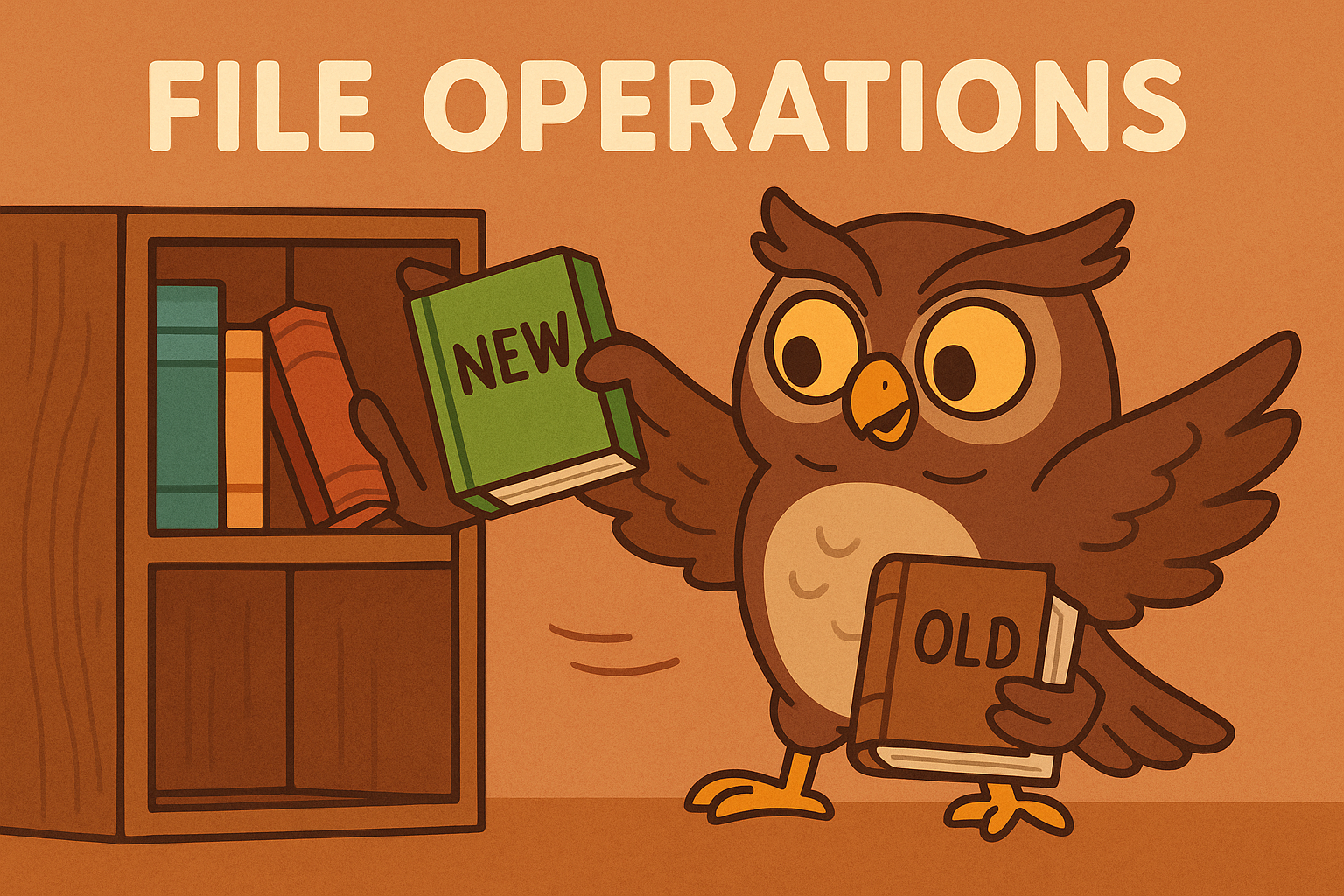
Sometimes you may want to rename a file, but the destination filename already exists. Using Path.rename() in this situation can raise errors or behave differently on different systems. The safest option is to use os.replace, which will overwrite the destination file if it already exists. Think of it like swapping out an old book on a shelf with a brand-new edition — the title stays the same, but what’s inside is fresh.
import os

os.replace("draft.txt", "final.txt")  # overwrites final.txt if it exists
Try this:
- Create a file called
final.txtand then runos.replace("draft.txt", "final.txt")to see it overwrite. - Compare this with using
Path.rename()on the same files to notice the difference.
Moving Across Drives
Renaming and moving files with Path.rename() works perfectly when the files are on the same drive. However, if you try to move a file to a completely different drive or device, it may fail with an error. That’s where shutil.move comes in handy. It’s like asking a friend to help carry boxes from one house to another: they’ll copy your stuff into the new place and then clear out the old one.
import shutil
shutil.move("data.txt", "backup/data.txt")
Try this:
- Move a file into another folder on your computer using
shutil.move. - Imagine this is like carrying files between a USB stick and your main computer.
Backups Before Risky Operations
Sometimes renaming or deleting files can feel a little nerve-racking, especially if the file is important. A good habit is to make a quick backup before doing anything risky. It’s the digital equivalent of photocopying an important form before you scribble on the original. That way, if your edits don’t go as planned, you can always fall back on the untouched copy.
import shutil
shutil.copy2("config.ini", "config.ini.bak")
Path("config.ini").rename("config.old.ini")
Try this:
- Pick a text file and copy it to a
.bakversion before renaming the original. - Open both files afterwards to confirm your backup worked.
Soft Deletes
Deleting a file with Path.unlink() is permanent — like throwing something straight into the shredder. If you want a gentler approach, you can use a library like send2trash, which moves files to your operating system’s recycle bin or trash. That’s more like tossing the item into the recycling bin at home — it’s out of the way, but you can fish it back out later if you regret the decision.
from send2trash import send2trash
send2trash("notes.txt")
Try this:
- Install
send2trashand delete a file with it. - Check your recycle bin or trash folder and you should see the file sitting there.
Common Exceptions in Extras
Working with file operations at this level can sometimes throw new exceptions. For example, FileExistsError happens if you try to rename to a file that already exists, while OSError covers a wide range of system problems, such as invalid file names or paths that are too long. Think of these as warning signs on the road — they’re not there to stop you having fun, but to keep you on the right track.